
2026.1.0 | Cyclone 3DR Release Notes

Installers
Links: Cyclone 3DR 2026.1.0 | Cyclone 3DR Viewer 2026.1.0
Link to update
What’s New
Cyclone 3DR 2026.1.0 is a major release that includes new features and improvements to the product.
The main changes and new functionalities are summarized here:
Scan to Steel
GeoTags experience
Import Navisworks model (NWD)
Favorite Script: Polyline Clearance
Portable Viewer
Scan to Steel
3DR | PLANT
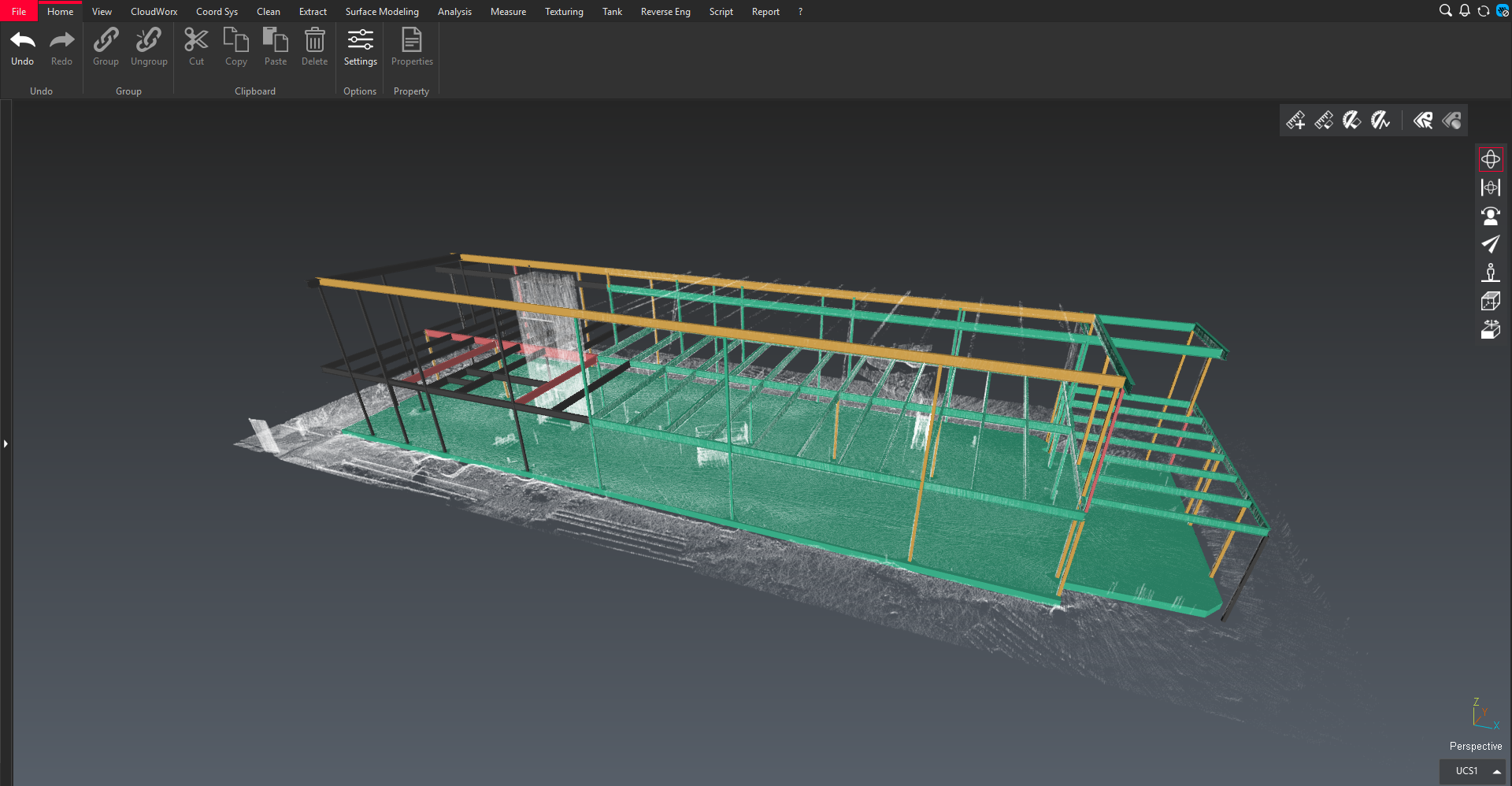
Scan to Steel is a new addition to the modeling tools available in Cyclone 3DR.
It addresses the needs of the plant and industrial sectors by enabling the design of steel structures directly from reality capture data. Typical use cases include:
Creating as‑built models to add or update references in external systems
Generating models suitable for structural analysis
.png?inst-v=e466437b-3d70-4f75-925d-490097fa0601)
Steel structure designed with Scan to Steel
Like Scan to Pipe, Scan to Steel is a step‑by‑step workflow composed of the following phases:
Defining levels
Extracting steel elements
Exporting results to external file formats
A tutorial Guided Workflow | Modeling an As-Built Steel Structure is available to help you started with this new feature.
Key points
Any point cloud
One of the main strengths of Scan to Steel is its compatibility with most point cloud sources without requiring any conversion.
For example, steel elements can be directly extracted from point clouds stored on Hexagon GeoCloud and streamed in Cyclone 3DR. You can refer to the Scan to Steel | Point-cloud-source page for a complete overview of point cloud source compatibility.
Classification
While not mandatory, classifying the input point cloud with the PLANT model significantly improves the user experience in two main areas:
Enhanced visualization: All along the different steps of the workflow, users can filter visible points by class, making it easier to focus on relevant areas, extract steel elements, and hide surrounding environmental data.
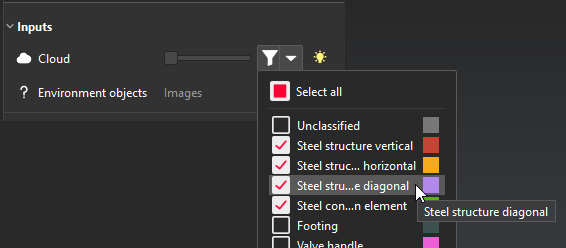
Classification filter menu
Optimized extraction: The extraction algorithm is optimized to process only the visible classes. This is particularly beneficial in complex or challenging environments where nearby assets may interfere with automatic detection.
This approach can also be combined with a limitbox to isolate an area of interest.
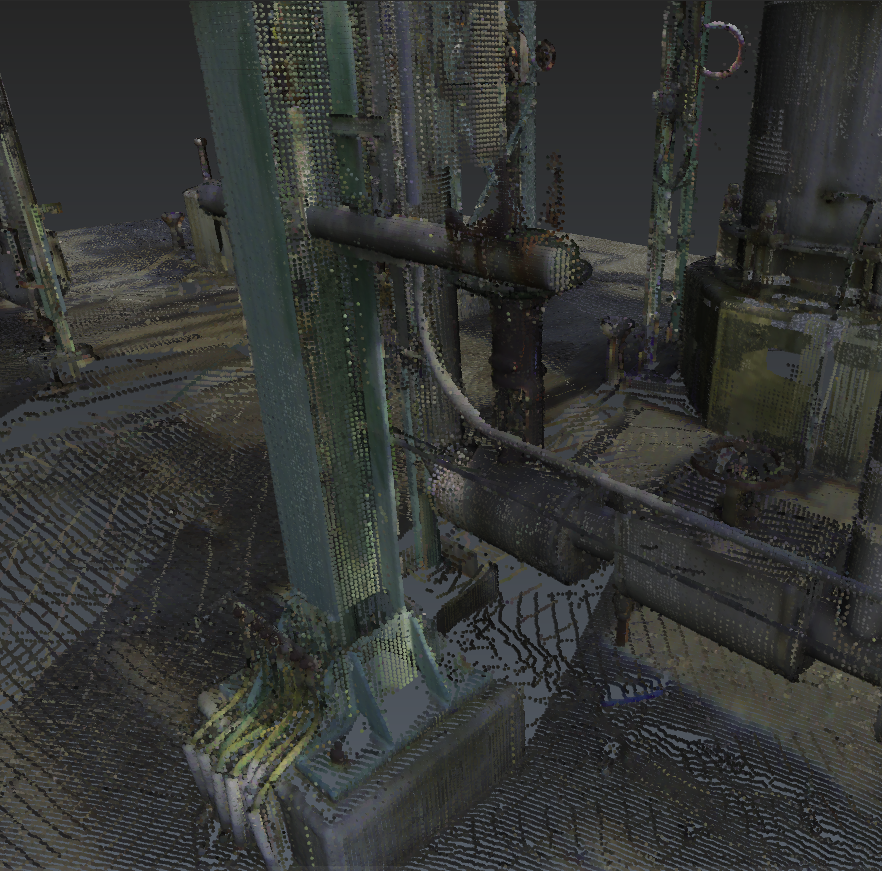
Challenging extraction area
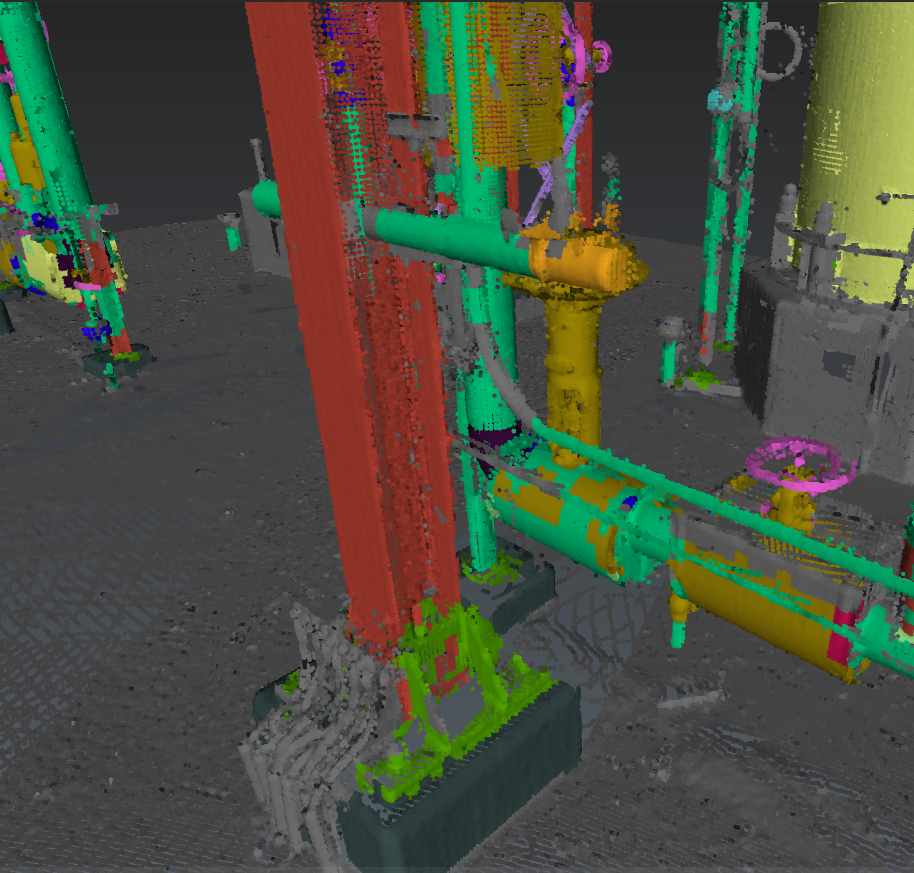
Classification (PLANT) helps identifying the different assets
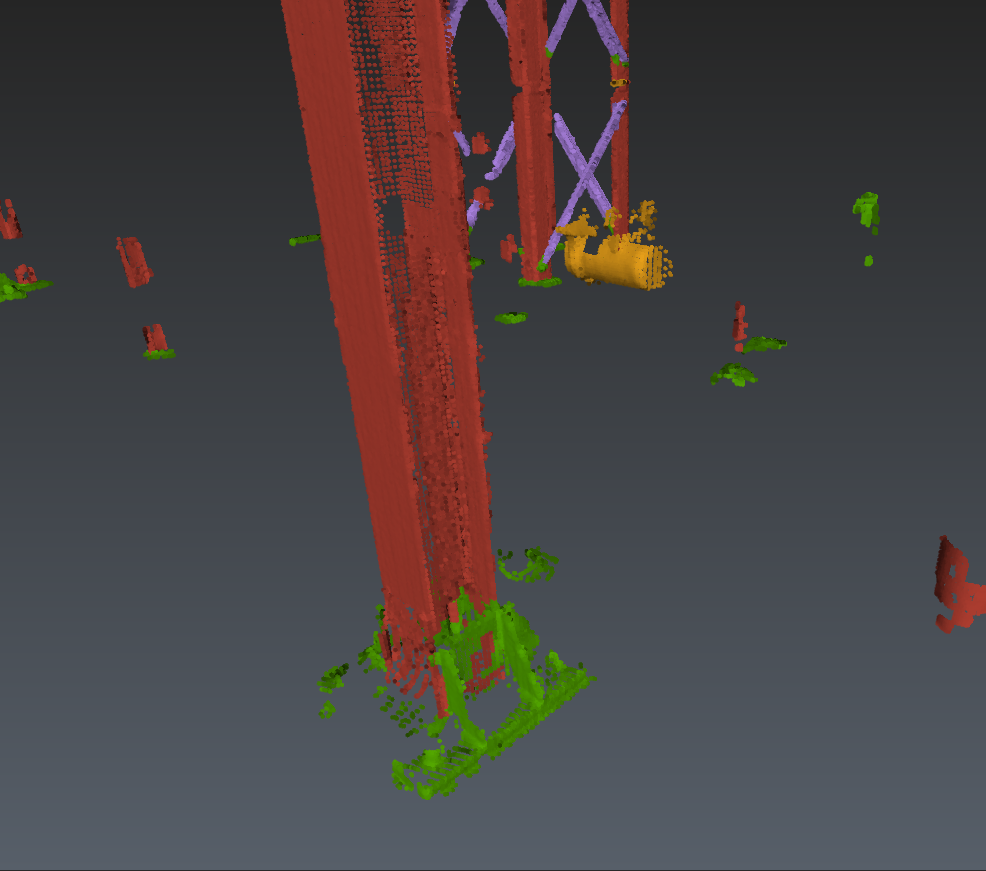
Classification filtering helps focus on the steel structure

Using the classification is only available from a native Cyclone 3DR point cloud.
STEP 1 - Level Definition
The first step of the workflow consists in defining the structural levels.
Defining levels provides several advantages in the later steps of the process:
Vertical elements, such as columns, can be automatically extended to reach the lower and upper related levels.
This guarantees proper alignment of all vertical elements and results in significant time savings.Steel elements organized into logical structural groups are easier to manipulate, verify, and validate.
The defined level structure is preserved in some export formats, such as IFC, ensuring consistency with downstream workflows.
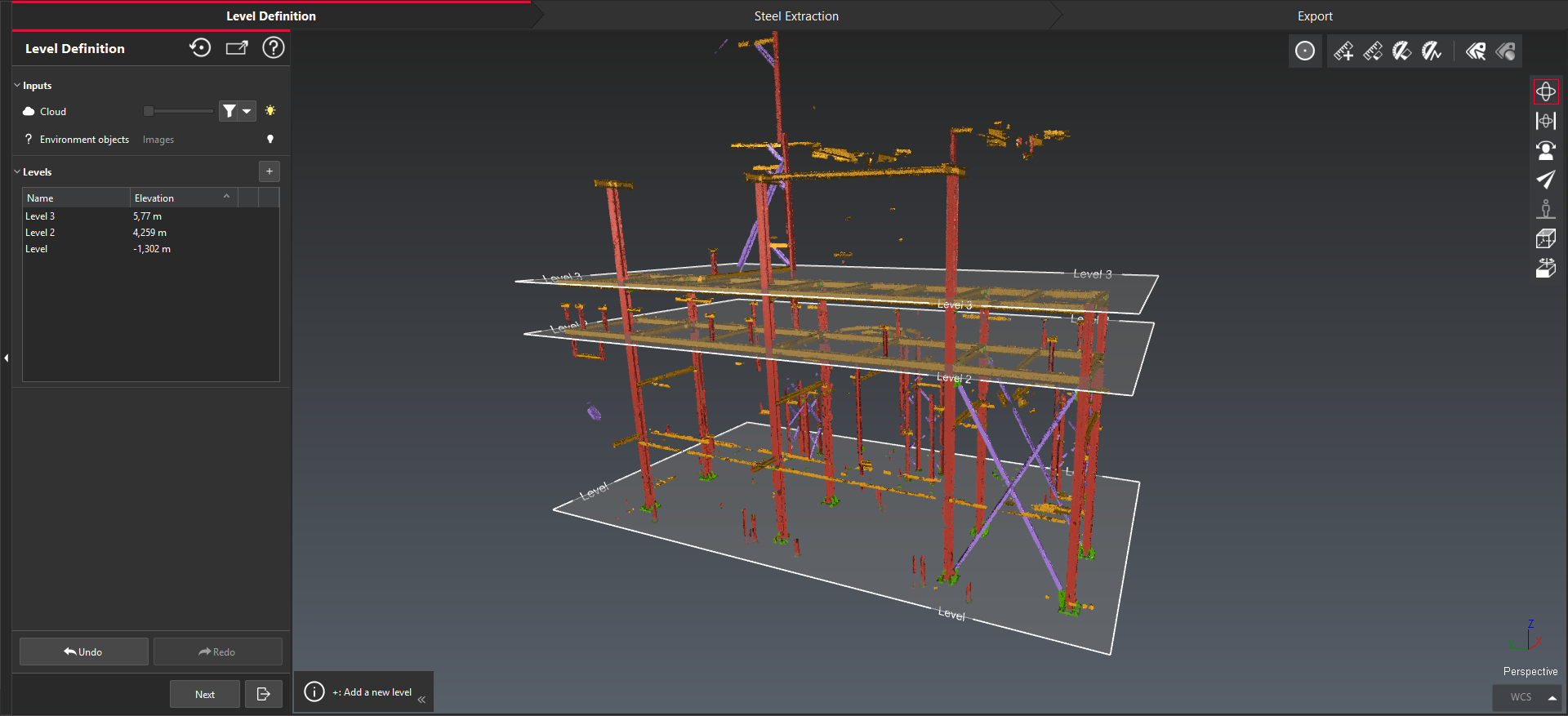
Three levels defined to match the scanned structure.
STEP 2 - Steel Extraction
The second steps provides several tools to extract all the steel elements from the point cloud.
The supported elements are grouped into three categories:
Columns
Beam
Others, such as struts, column bracing, etc.
Extraction process
The extraction can start from a single click. For challenging or noisy environment, it is possible to define a second click to help guiding the algorithm.
Steel elements are extracted based on a set of predefined references and profiles, organized by Standards.
The algorithm automatically selects the most appropriate profile from the chosen standard by evaluating the point cloud coverage and deviation error relative to the surrounding points.
It is also possible to add custom standards to extend the list of steel references.
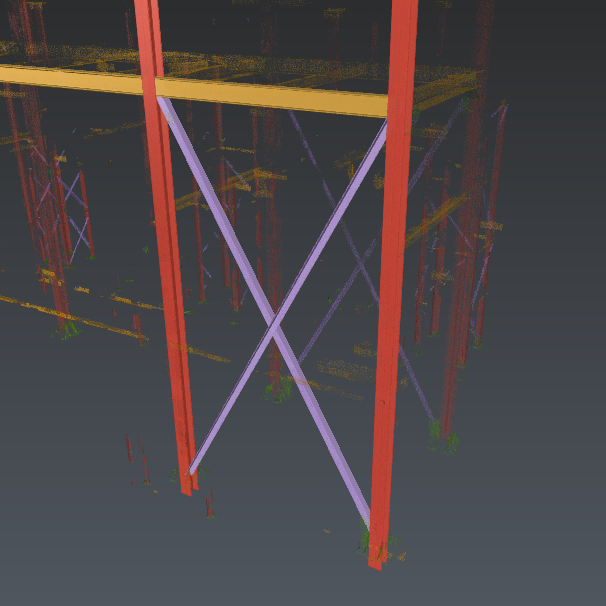
Three types of elements: columns, beam and others.
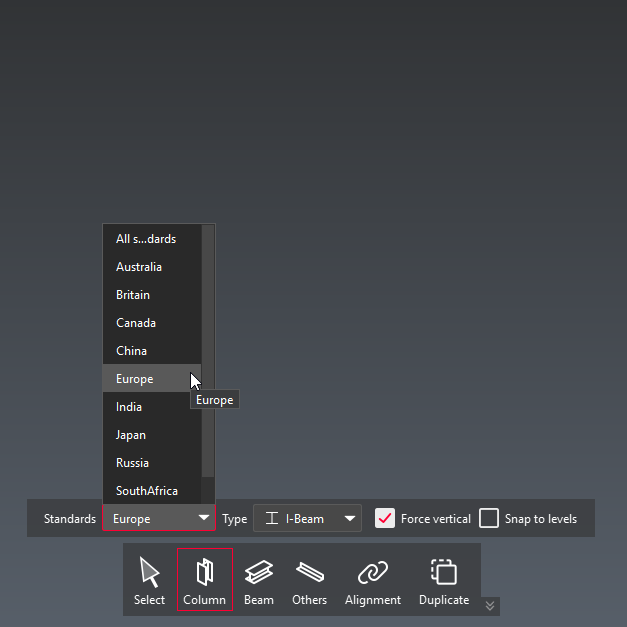
Standard selection while extracting a column.
Once the extraction is completed, an Extraction View is displayed to review the proposed profile.
From this view, it is then possible to:
Select a different reference from the left panel
Manually adjust the extracted element (rotating, translating)
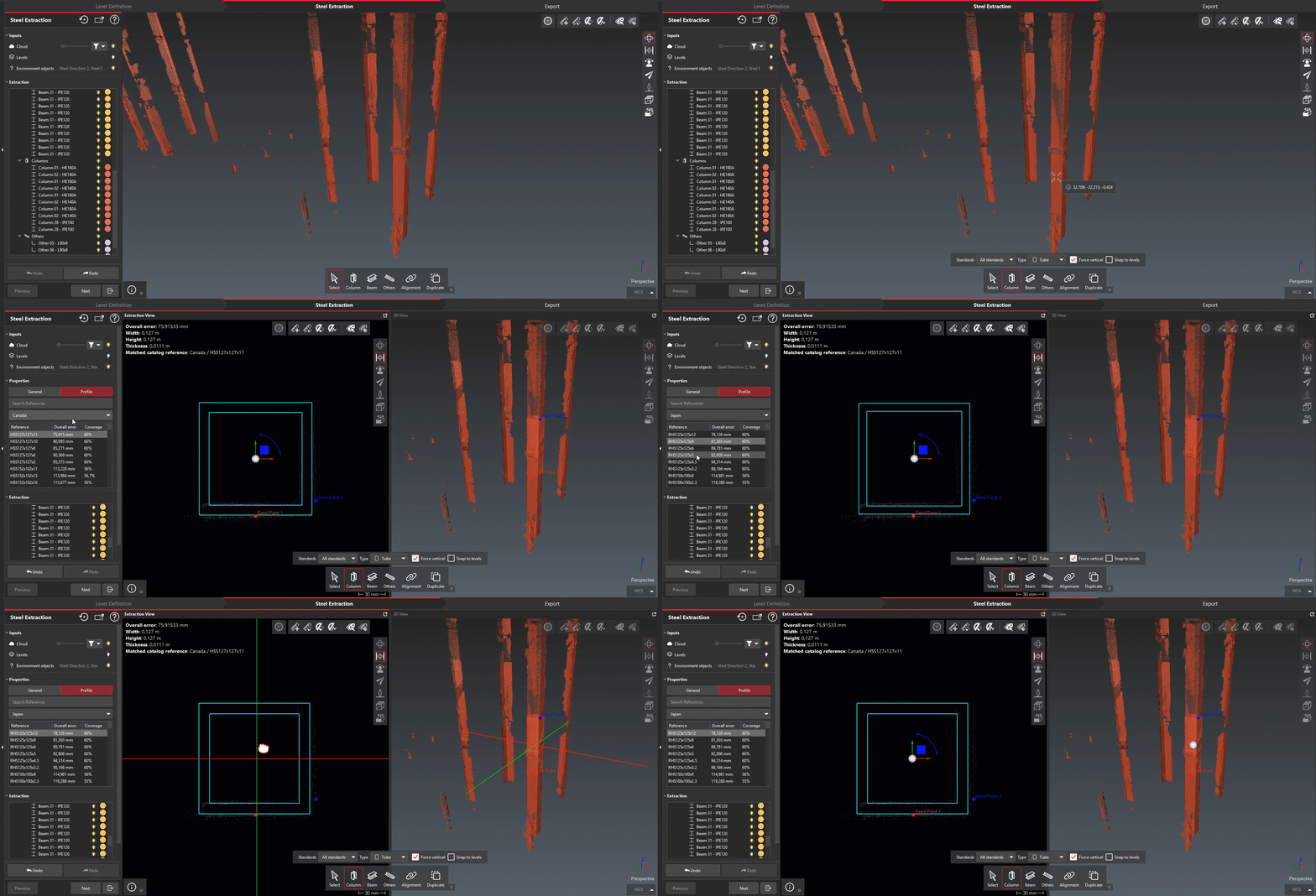
Adjusting the extraction from the Extraction View.
Alignment
To ensure that steel elements fit together accurately, an Alignment mode is available.
This mode allows a beam to be aligned and extended between two columns.
The alignment result relies on the different axis position of each input elements, ensuring an optimal control over the connection and consistent geometry.
Aligning and extending a beam to fit two column extremities.
Duplicating elements
Since steel structures are largely composed of repeating elements, a Duplicate mode is available to efficiently replicate already extracted elements along a specified direction.
This significantly speeds up modeling when dealing with regular or repetitive structural layouts.
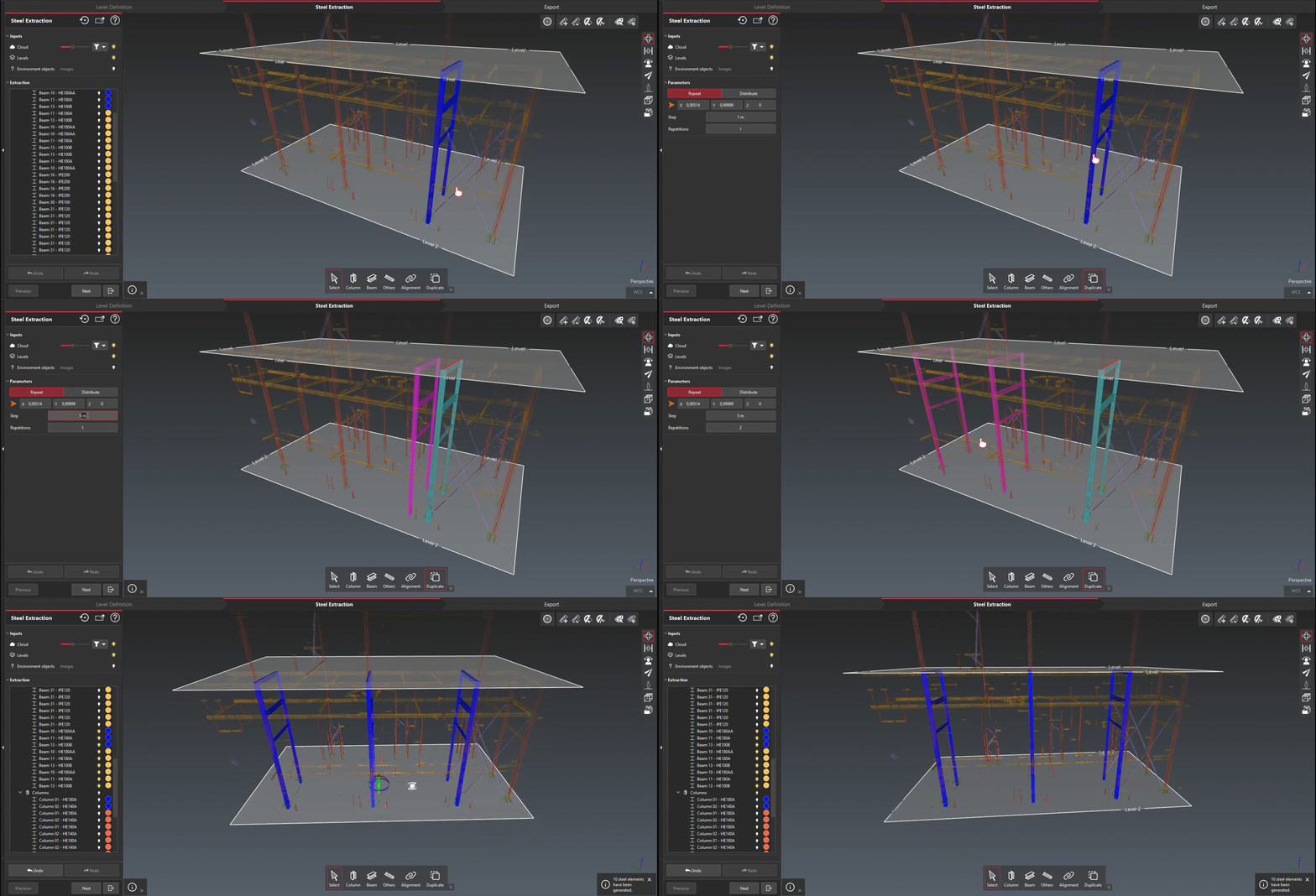
Duplicating elements
STEP 3 - Export
Once all steel elements have been extracted, they can then be exported to external files.
Like Scan to Pipe, several export formats are available to ensure a optimal collaboration and compatibility with downstream workflows.
Additional export options include:
Exporting only a selected subset of elements
Exporting axes and profiles only (CAD formats only)
GeoTag experience
Cyclone 3DR and Cyclone 3DR Viewer now support visualizing and navigating to GeoTags from LGSx.
TO UPDATE
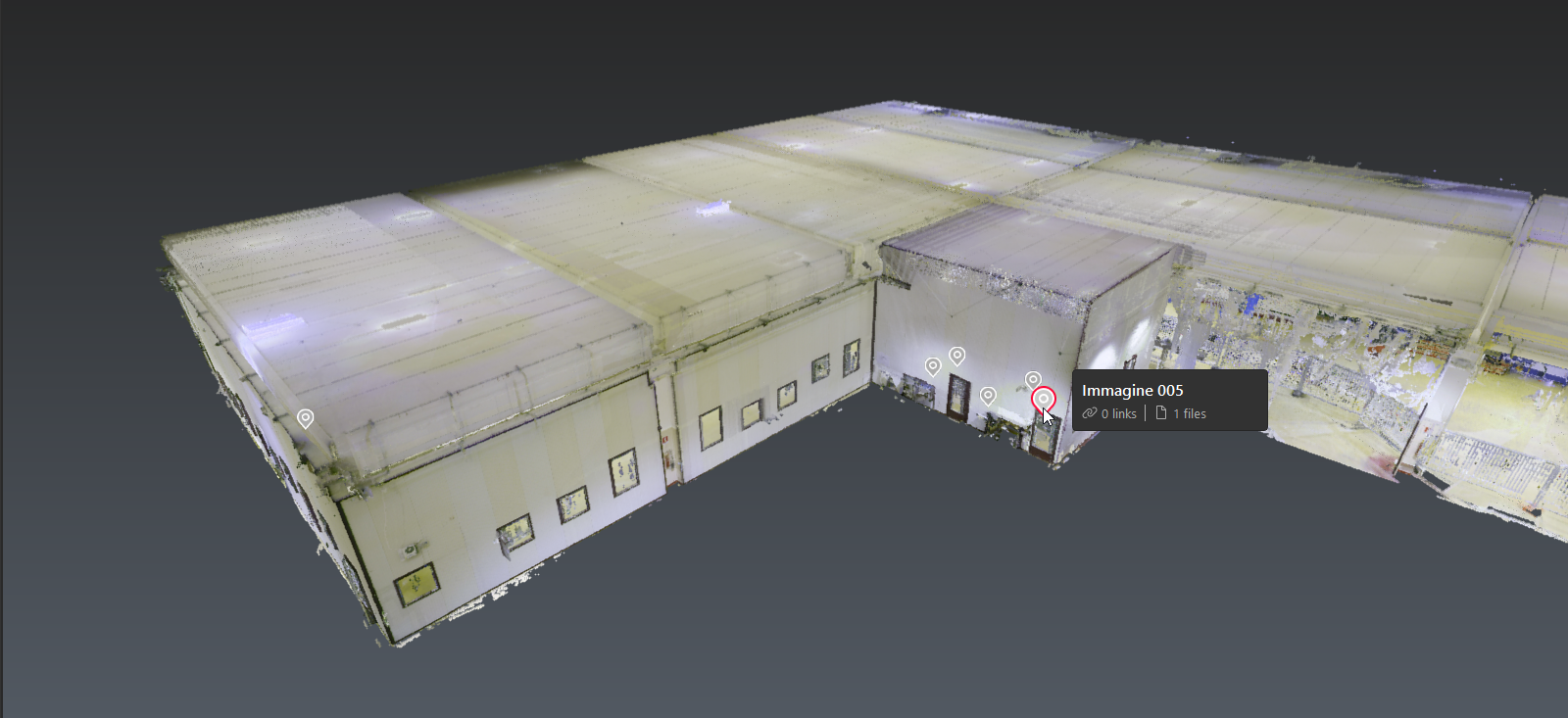
Streaming and navigation
3DR | STANDARD 3DR VIEWER
After importing a LGSx file, Geotags are automatically added to the document.
A new toolbar is available to quickly manage the visibility of all GeoTags within a scene.
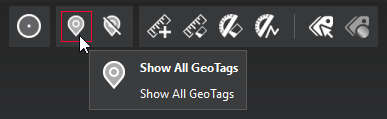
GeoTag toolbar to manage visibility.
Jumping to a Geotag position is possible from the object explorer, either via the context menu or the settings menu next to each item in the tree view.
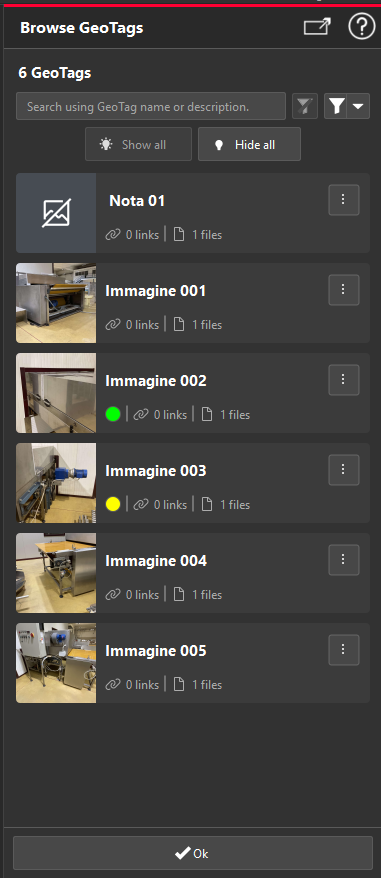
The new Browse GeoTags command provides an efficient way to look through all Geotags of the project.
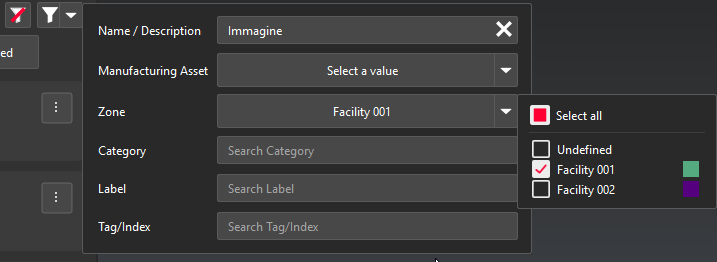
From there, users can filter GeoTags based on their content whether by simply searching within titles or descriptions, or by using a more advanced filter based on the values from any field.
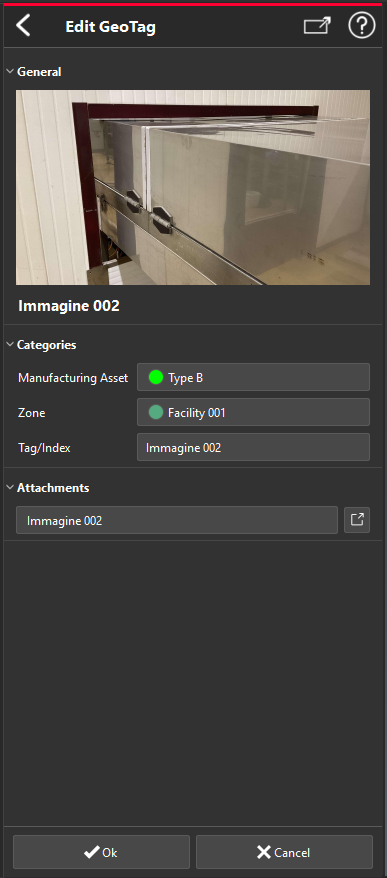
The full content of each GeoTag can be accessed with a single click, allowing users to review all associated information, open attachments, and follow embedded links—facilitating collaboration and faster decision‑making.
TO UPDATE
TO UPDATE
TO UPDATE
GeoTag Report
3DR | STANDARD
The reporting capabilities have been extended to support GeoTags content.
The new GeoTags Report command collects all the GeoTags within the project and generates dedicated reporting data by consolidating textual and image data into a single report chapter.
Import Navisworks (NWD)
3DR | AEC 3DR | PLANT 3DR VIEWER
NWD files (AutoDesk Navisworks) can now be imported in Cyclone 3DR.
The user will benefit from the whole BIM experience to verify their design and follow the different phase of a construction or renovation project:
BIM Import and Edition to select the relevant elements
BIM Alignment with a point cloud
BIM Analyses (Progress Monitoring, Tolerance Checking, Clash, Visual Notes, etc.)
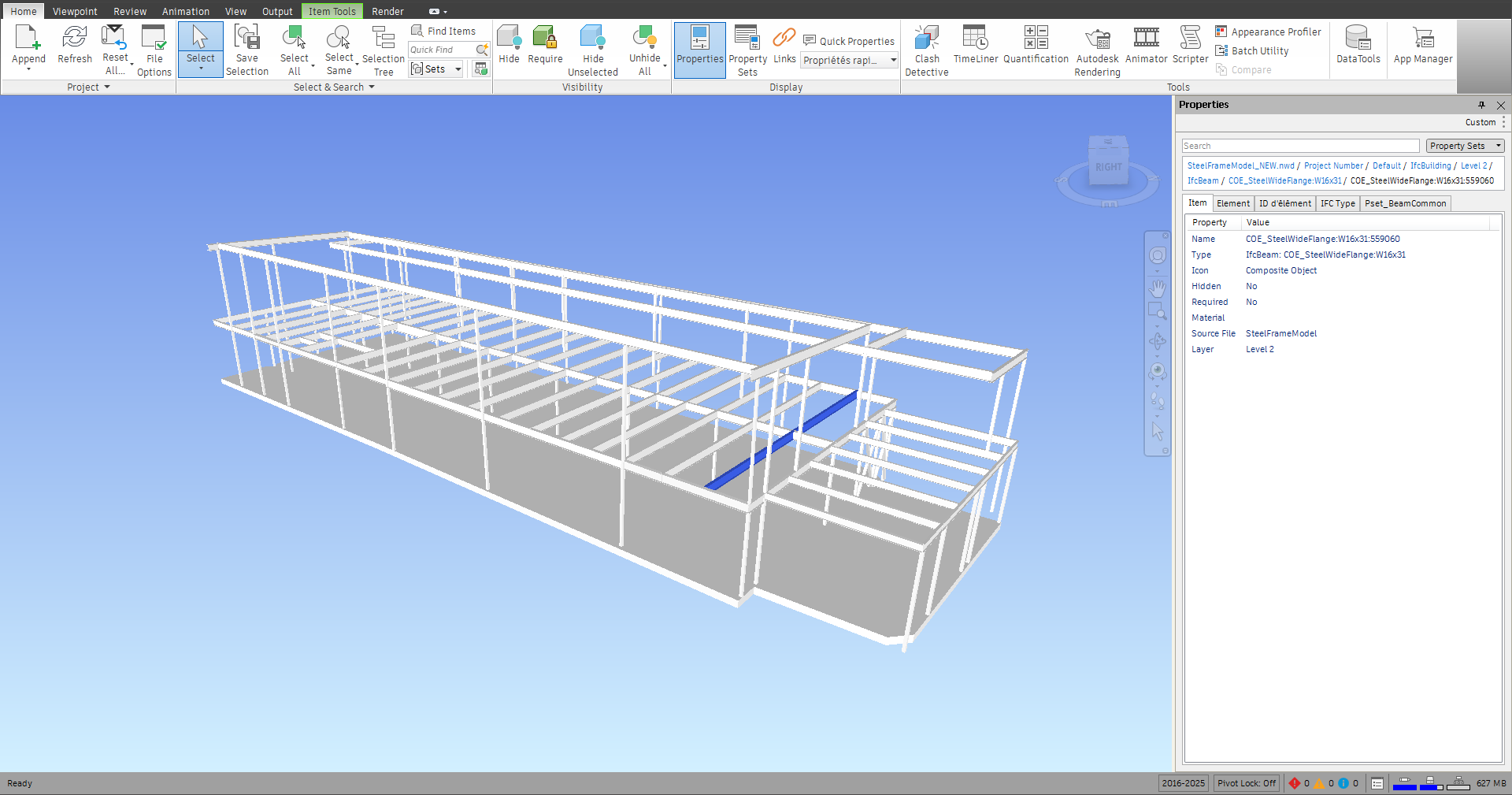
Steel structure from a NWD file opened in Navisworks.
Progress Monitoring analysis from the same NWD file.
Clearance: New Favorite script
3DR | STANDARD
This script is a new addition to the set of pre‑installed scripts.
It enables the verification of clearances between roads and overhead structures—such as bridges or power lines—by computing vertical distances between polylines.
At least two polylines are required: one representing the ground and one representing the structure for which clearance is being measured. Multiple clearances can be computed simultaneously by selecting more polylines before launching the script.
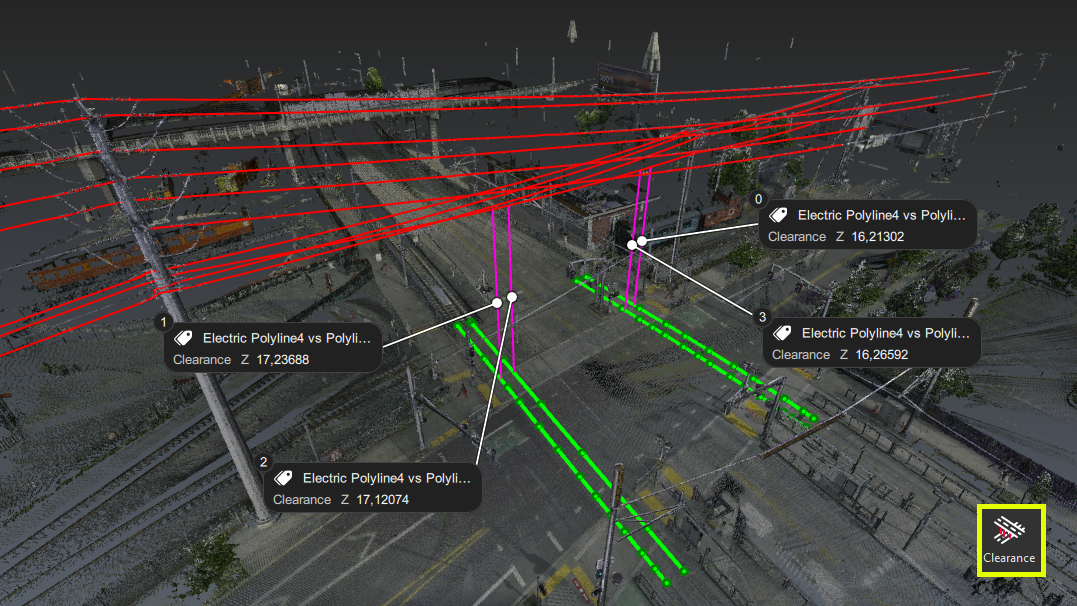
Clearance analysis of electric lines hover a road
This script can be combined easily with the existing Electric Line Extraction script to automate clearance verification.
Cyclone 3DR Free Viewer
Portable Viewer
3DR VIEWER
Cyclone 3DR Viewer is now also available as a standalone application called Portable Viewer.
This version provides access to the viewer capabilities without requiring a traditional installation process. The application can be launched directly, making it easy to use in environments where software installation is restricted.
The Portable Viewer is particularly useful in contexts where internal IT or security policies prevent installing applications on local machines, while still allowing users to review, collaborate, and share projects.
The installer-based version remains the recommended option for standard use and collaboration scenarios, as it offers the best integration and full support (see the Limitations section below).
Few steps are required to run the portable viewer:
Download the archive containing the Portable Viewer
Extract it on your preferred destination
Run the executable from the extracted folder

Execution of the Portable Viewer.

Limitations
The portable version of the viewer comes with very few limitations in regards to the installer version:
FARO import (*.fls - *.fws) is not supported
Auto-Update mechanism is not enabled
Improvements
Hexagon GeoCloud
The experience to connect to Hexagon GeoCloud (former Reality Cloud Studio) has been updated to match the new branding identity.
This improvement comes with the support for SSO authentification.
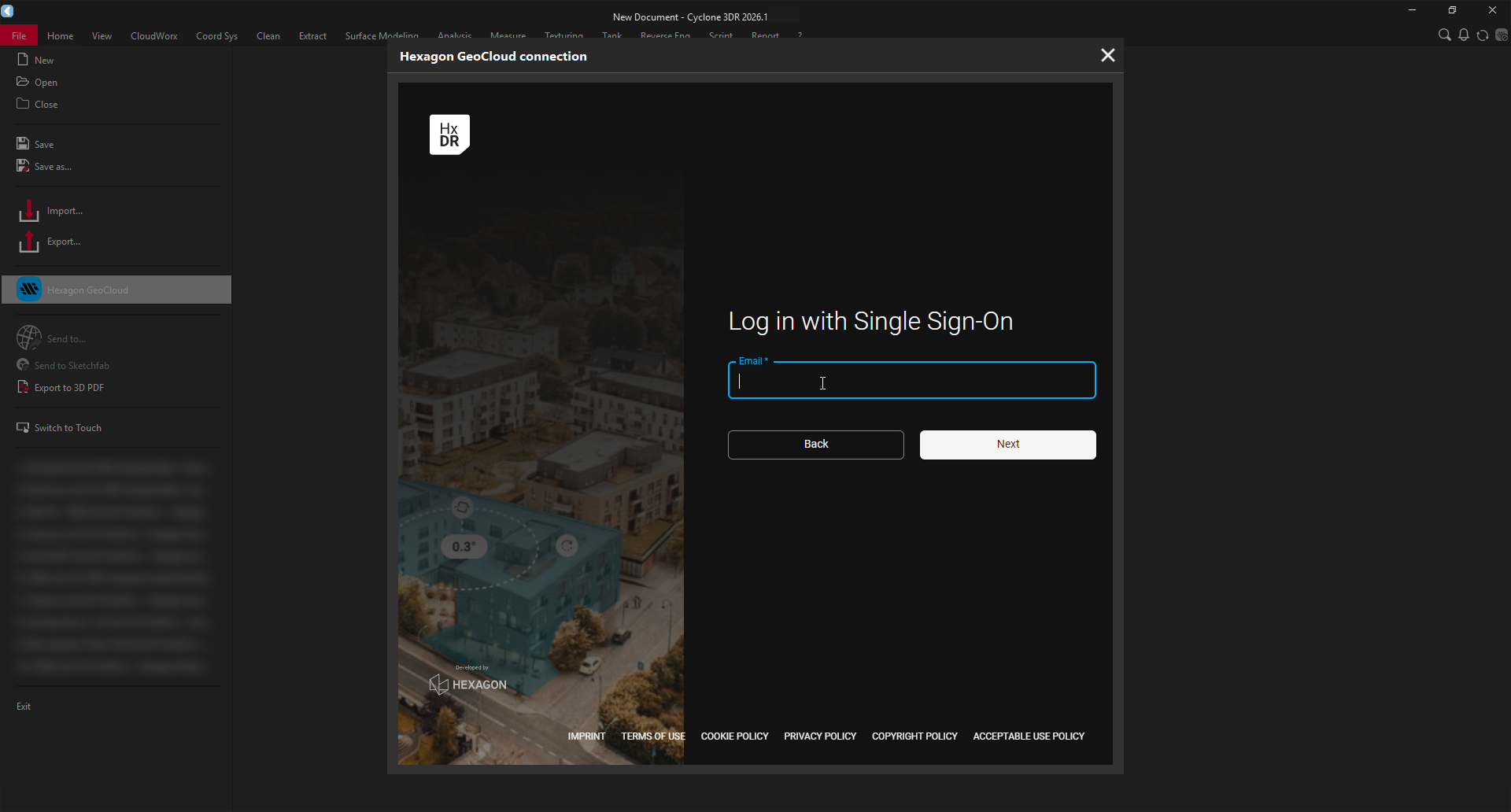
SSO login
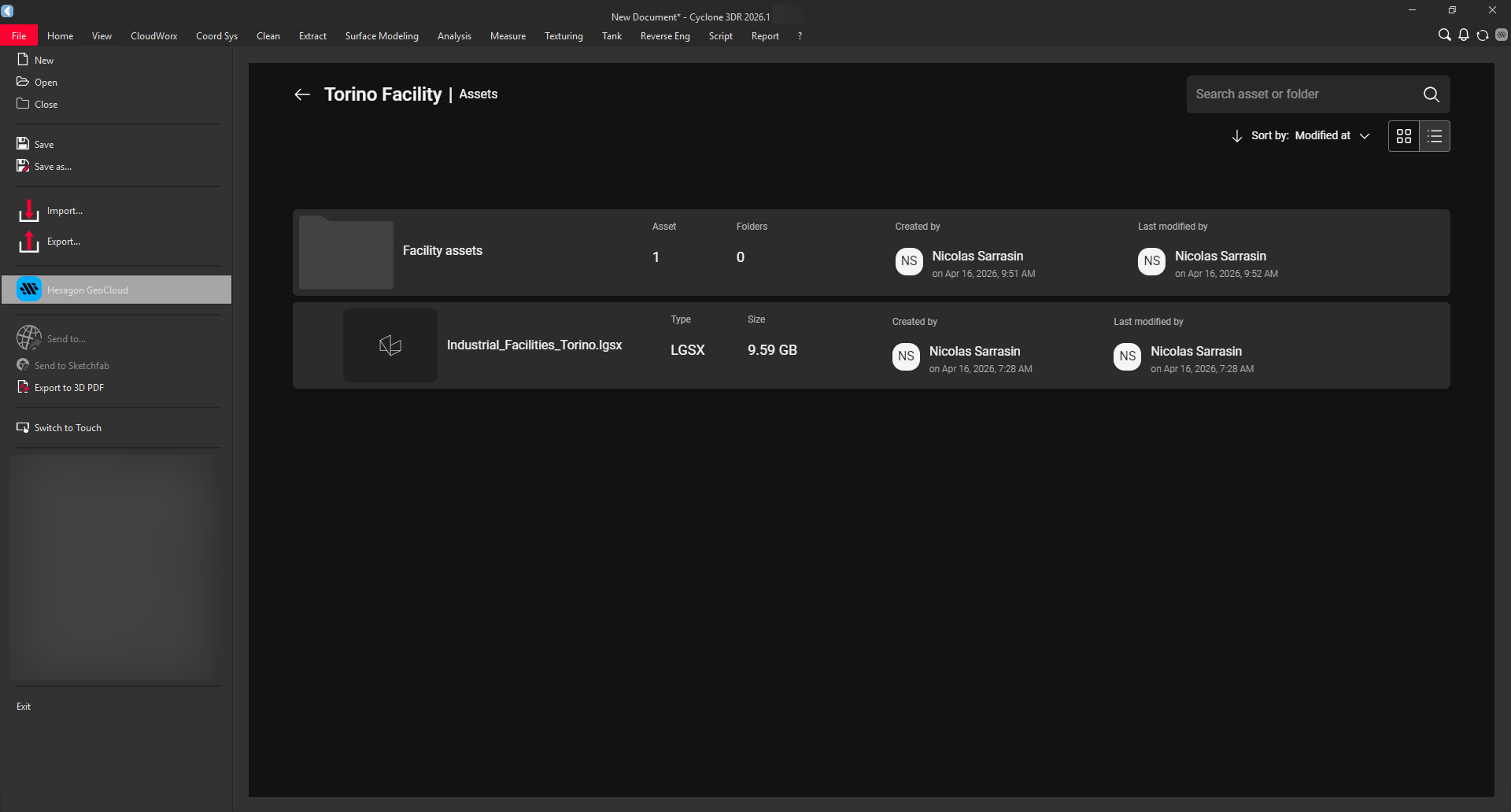
Project browsing
Point Selection Compatibility
The snapping modes of the point toolbar have been enhanced to support streamable point clouds (with the exception of the Surveying Target mode).
As a consequence, this changes introduces a compatibility improvements for a wide range of application facilitating modeling and collaboration.
To list some of them:
Extending Virtual Surveyor capabilities to fully support LGSx and Hexagon GeoCloud projects (no conversion needed)
Accurately draw polylines by clicking on a Hexagon GeoCloud point cloud
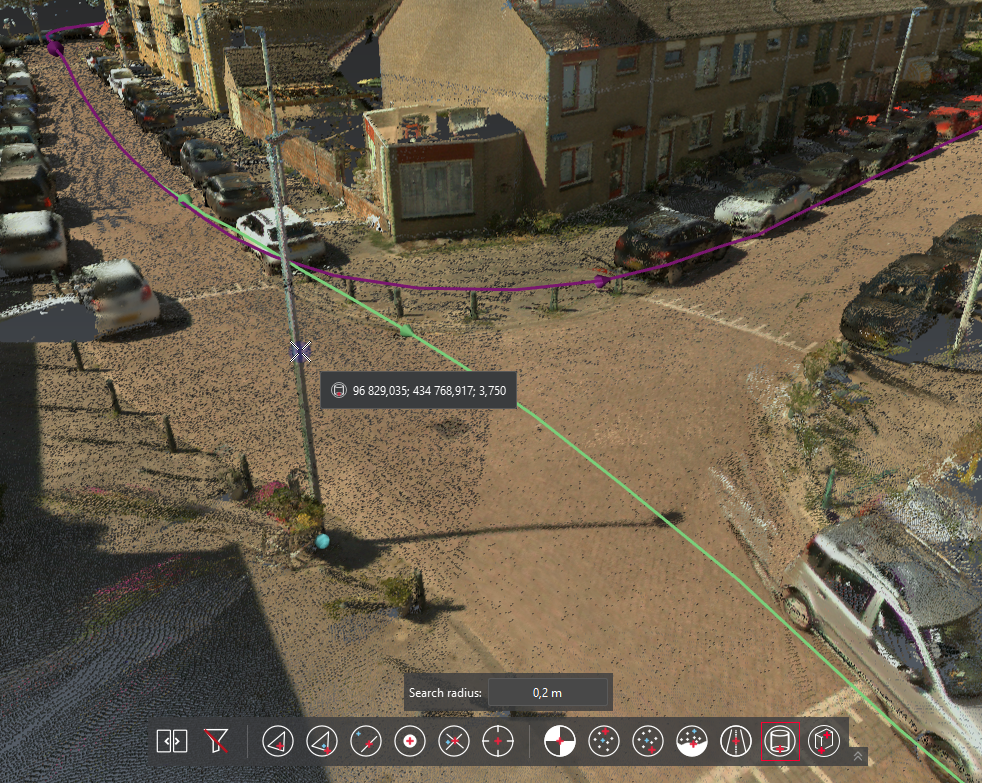
Pole Center extraction from a streamed point cloud (LGSx)
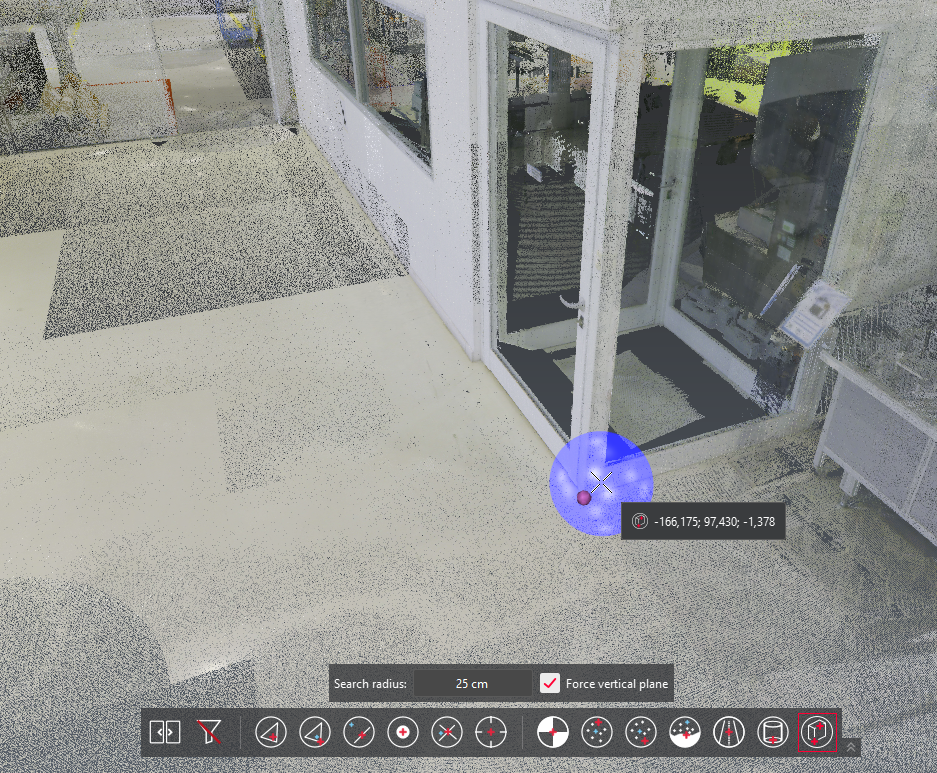
Corner extraction from a streamed point cloud
(Hexagon GeoCloud)
Search Commands
The Search Commands feature allows users to quickly find and access any available command without navigating through the ribbon.
Although it has been available since 2019, it was only accessible via a keyboard shortcut, making it largely unknown to most users.
With this release, a dedicated button has been added to the ribbon, making Search Commands directly visible and easily accessible.
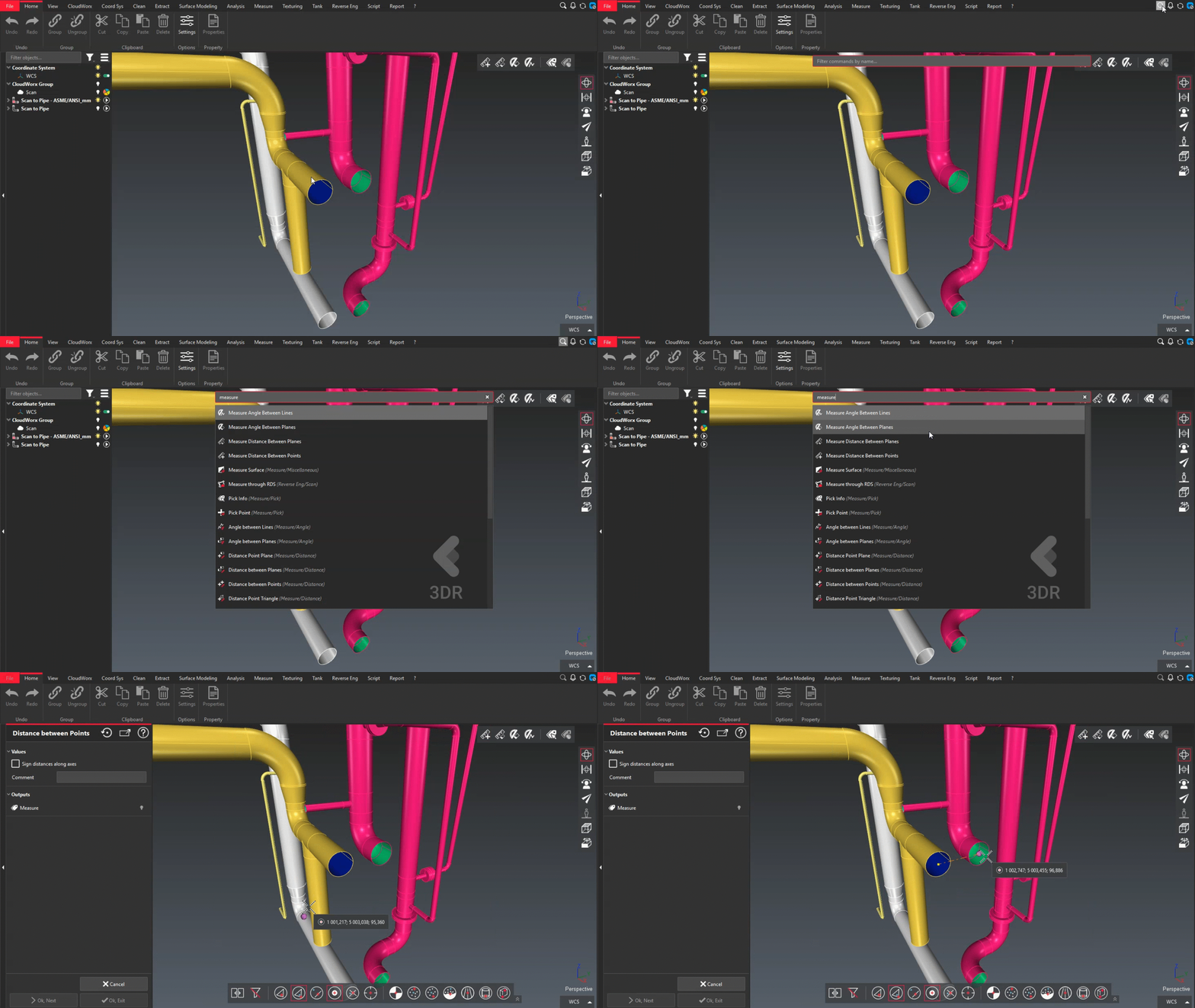
Search Commands is accessible in the ribbon
Display and Navigation settings
Point Shape
A new option is available in the Display page of the Settings dialog, allowing users to switch between two point shapes: round or square.
The round shape remains the default setting.
The square shape is particularly useful for low-density point clouds, as it covers a wider pixel area and improves point visibility.
For context, square points were replaced by circular points in 2022, and are now reintroduced as an option in this release.
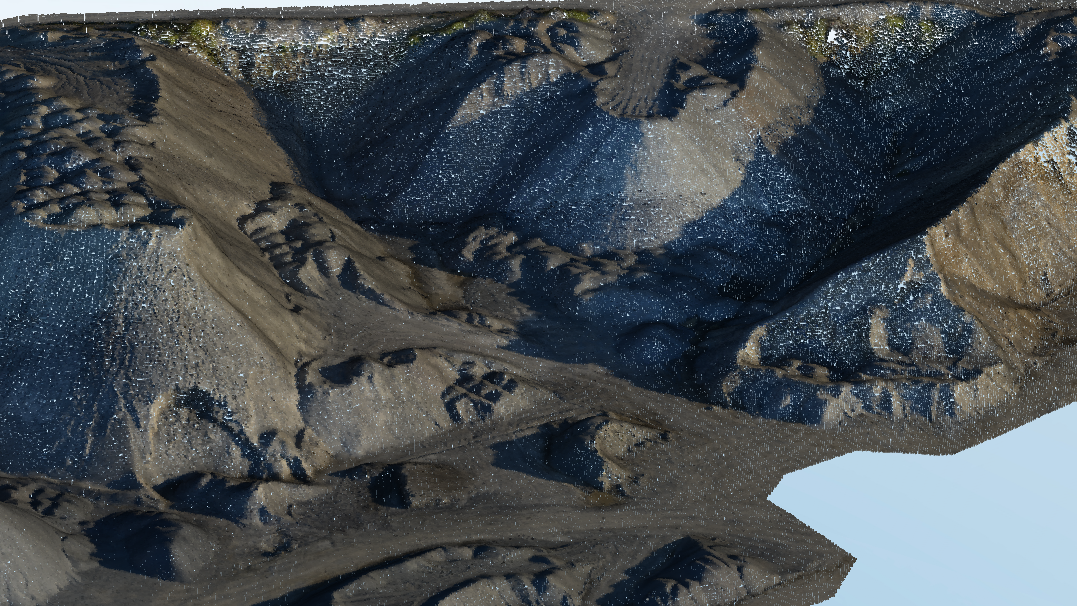
Round shape points
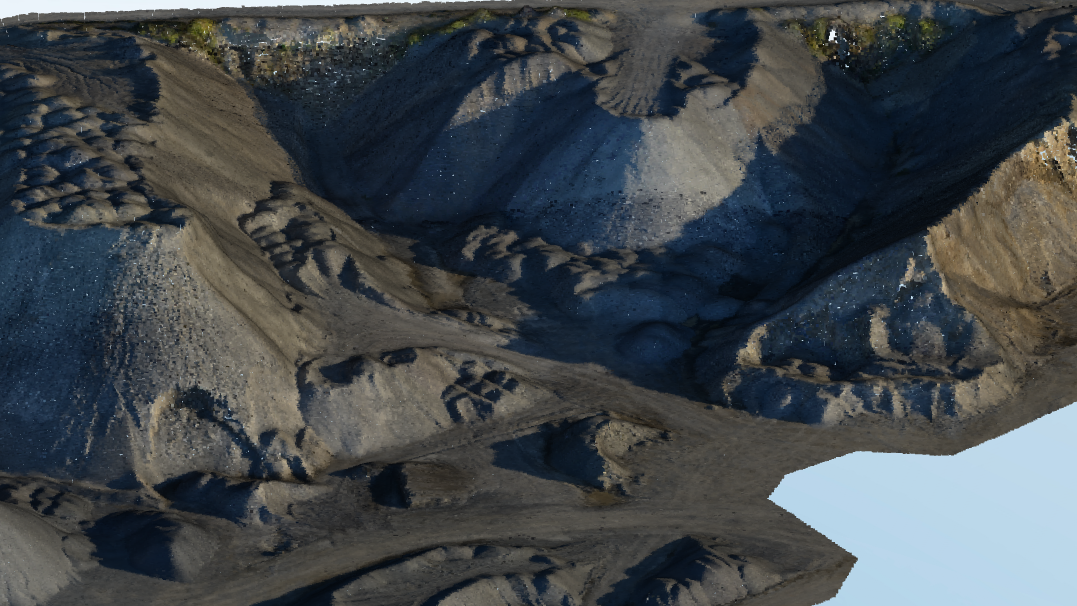
Square shape points
AutoCAD camera profile
A new camera profile is available from the Display page of the Settings dialog to closely match AutoCAD navigation behavior.
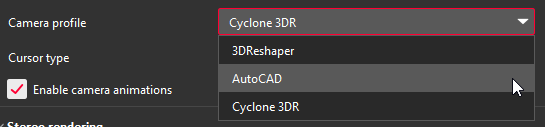
Camera profile selection in the Settings

Camera toolbar
This mode brings an AutoCAD-like navigation experience to Cyclone 3DR, allowing users to seamlessly switch between the two applications and ease collaboration.
Key features of this camera profile include:
A dedicated button to switch between Perspective and Orthographic projections
Pan, Orbit, and Free Orbit (with Reference Vector disabled) accessible directly via the mouse wheel
When activated from the toolbar, specific modes (such as First Person) behave as temporary modes and can be exited at any time by pressing ESC
Check the Navigation page for the whole list of shortcuts of this new camera profile.
Other Improvements
Display: Improve performances when a lot of polylines were being rendered.
Extract > Contour Lines: The elevation information is now added to the names of the sets of polylines.
File > Export LGSx: Add the possibility to adjust the point cloud resolution. Also available in the script method.
Notification Center: Command results are now recorded.
Scan to Pipe > Export Mesh: Add option to export in WCS.
Script: Added
StdDeviationandDistWorstPtas available return values for theSCloud.BestSqSlot().Send To: Sending Rectangle form is now supported.
Bug Fixes
Analysis > Profile Extraction: Fixed inverted curve sections extracted from LandXML alignments.
Connect to Hexagon GeoCloud: Fixed incorrect camera pivot when rotating streamed point clouds.
Script: Fix crash that could occur when resizing the script dialog.
Known Issues
The Documentation Center is only available in English.
Some DWG import and export issues might happen. It is recommended to use the Send to CAD feature.
If DXF can be imported with a standard version, DWG requires the AEC or PRO Edition. One workaround is to use the 3DR Send command from AutoCAD to Cyclone 3DR.
Export viewsets to PDF report or BCF tickets do not work with NVidia driver 573.48 version. Fixed with 580.92 version.
Scan to Steel is not compatible with point cloud directly streamed from Register 360 PLUS.
NWD files prior to Navisworks 2016 can’t be imported.
Deprecated Features
Leica Geosystems strives to provide support for the widest array of operating systems and file formats possible as is reasonable given current technologies and support from third-party partners.
With each release, we review our list of currently supported formats and operating systems in line with industry trends and announced product terminations.
Leica Geosystems may add or terminate support for a file format during any release. Obsolete operating systems will be supported for six months after their announced termination or the next major software release, whichever comes first. Server products will be supported in alignment with Leica’s Client License Manager (CLM) supported servers to guard users against incompatibility.
Cyclone 3DR 2026.1.0:
Cyclone Enterprise: Connecting to Cyclone Entreprise through the CloudWorx menu is not supported anymore. As a consequence, the following commands have been removed:
CloudWorx > Connect to Cyclone Enterprise
CloudWorx > Manage Connections
SCwCloud.ManageConnectionsis removed
Generalities
Computer specifications
Please refer to the 2026.1.0 | Cyclone 3DR Release Notes | Computer-specifications page for up-to-date specifications.
Installation update procedure
All installation details are available on a dedicated FAQ page: Cyclone 3DR | Installation process.
Interoperability
Import / Export supported file formats
Refer to the Cyclone 3DR Technical Specification page for a complete list of supported file types per license.
Compatibility with streamed projects
Cyclone 3DR is able to stream and process data from different sources such as LGSx or Hexagon GeoCloud.
The Working with streamable data documentation page provides a comprehensive overview of the user experience and associated workflows.
Connect to Cyclone FIELD 360
The connection from Cyclone FIELD360 to Cyclone 3DR (2024.0 and later versions) projects is limited to TLS sensors:
P-Series
RTC360
BLK360, BLK360 G1
Licensing
All users with valid CCP or CCP which was valid as of for Cyclone 3DR, can run this new version of Cyclone 3DR.
All users with valid CCP or CCP which was valid as of for Cyclone SURVEY, can run this new version of Cyclone 3DR (Standard and Survey Edition features only).
All users with valid CCP or CCP which was valid as of for Cyclone MODEL, can run this new version of Cyclone 3DR (Standard and Plant Edition features only).