
Cyclone 3DR | Installation process
How to get the installers?
Latest versions of Cyclone 3DR and Cyclone 3DR Viewer are available on Leica MyWorld portal.
For a complete list of all installers and additional resources, you can check this page.
Installation update procedure
Launch the Cyclone 3DR EXE and follow the instructions in the Setup Wizard.
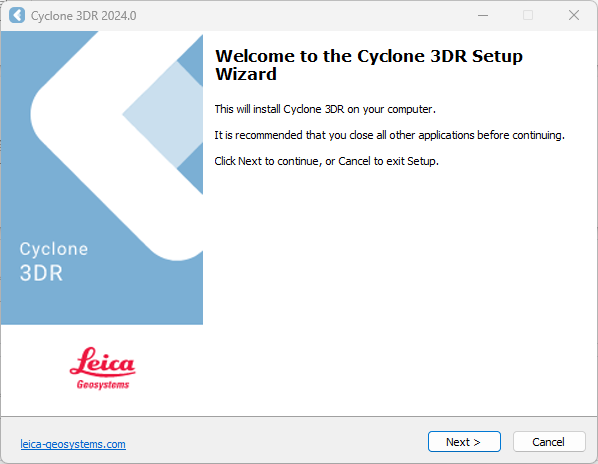
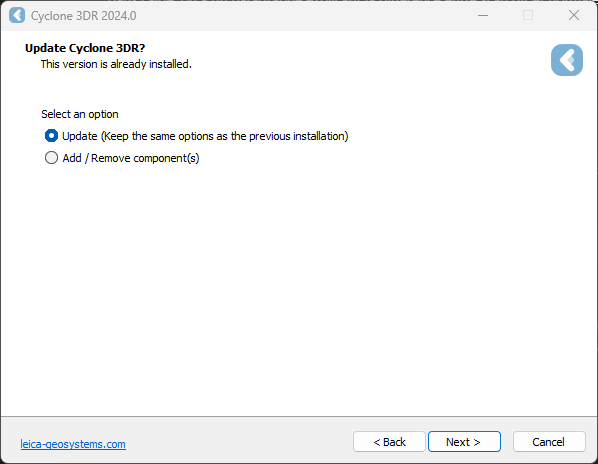
If 3DR is already installed, you will be prompted to select the update mode Cyclone 3DR.
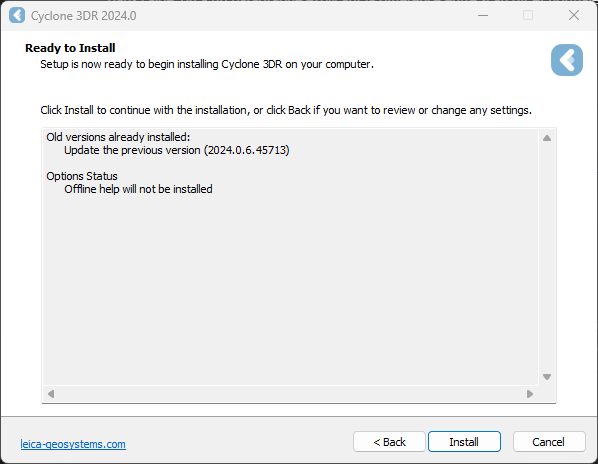
Complete the installation by selecting “Install”.
Licensing setup
Once you have installed Cyclone 3DR, open the Client License Manager for Floating Licenses via Cyclone 3DR (Home/Settings/License) or via the program located here:
Start Menu | All Programs | Leica Geosystems | Client License Manager

Be sure to choose the CLM Floating option (there are two CLM options and the Nodelocked CLM will not activate your license).
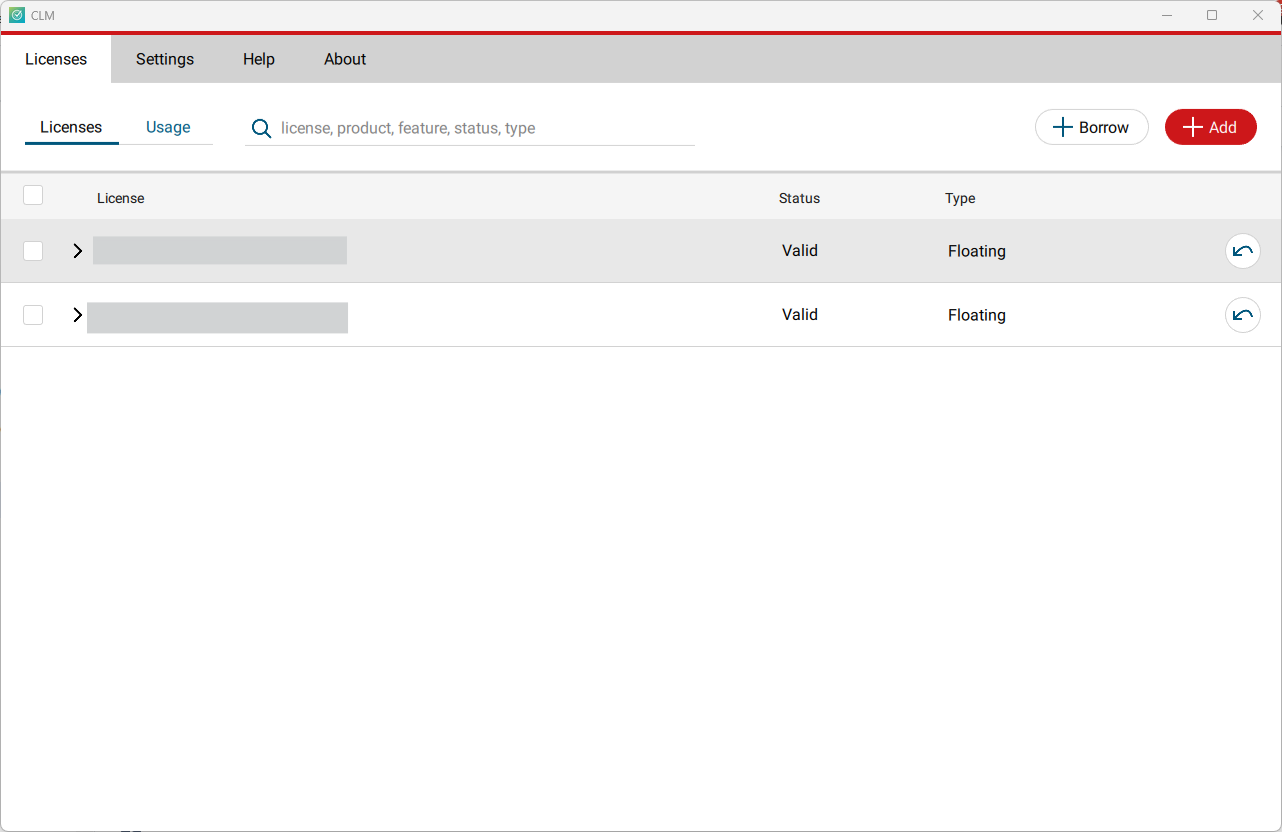
Click Add.
Enter your Entitlement ID (EID) in the field (copy / paste). To enter multiple EIDs separate them with a semicolon ";" and no space.
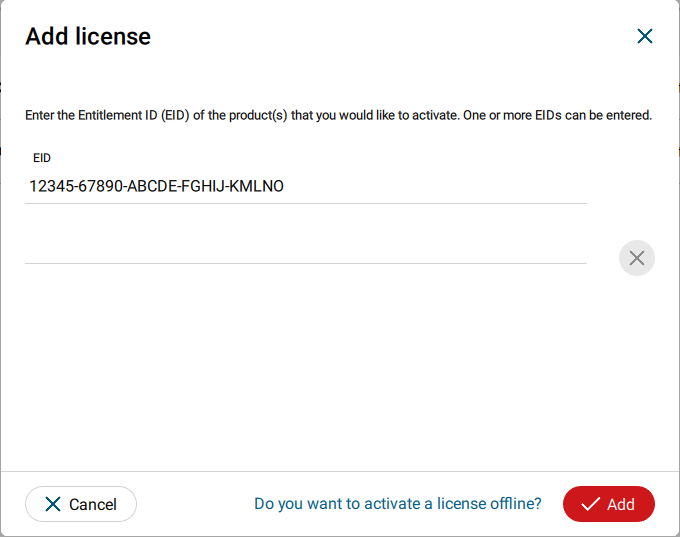
After you have entered your EID, click on the Add button in the bottom right of the page.
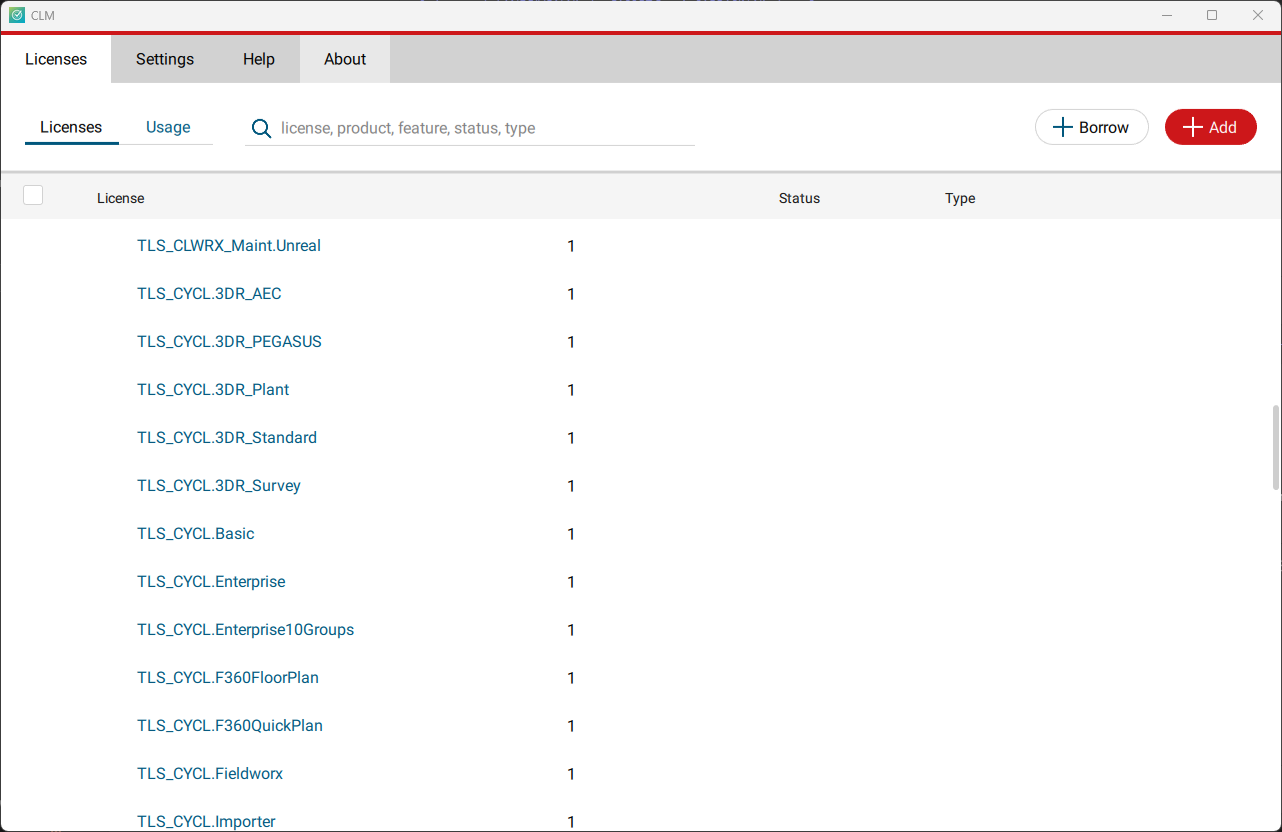
Once your licenses are activated you can close CLM and launch or return to Cyclone 3DR.
Go to Home | Settings and select License.
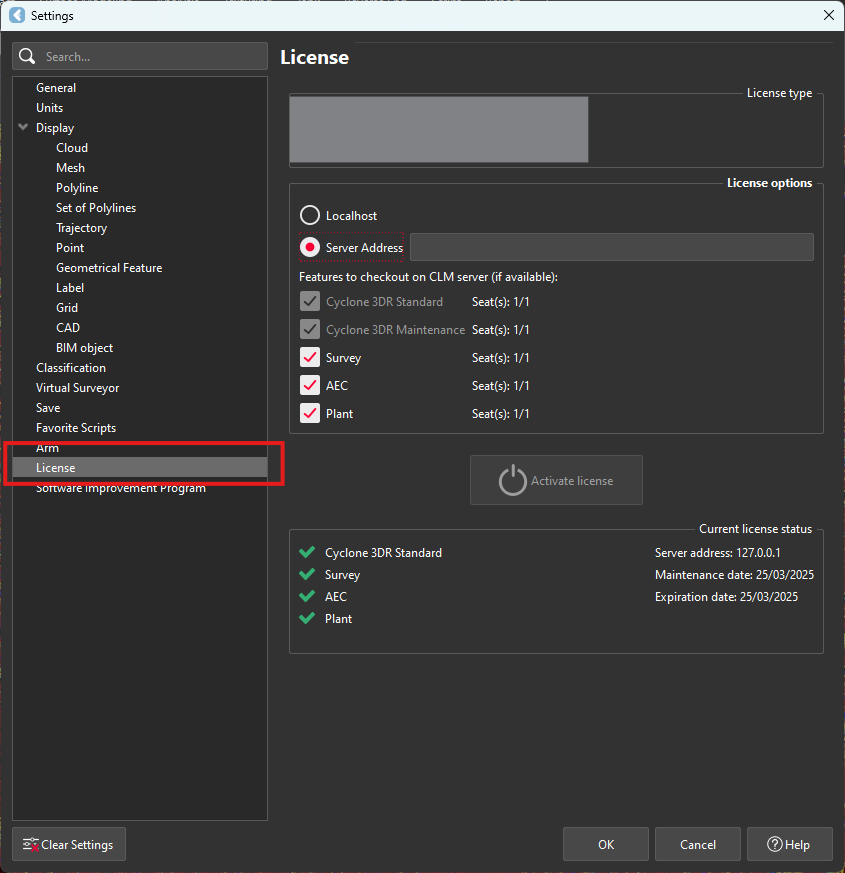
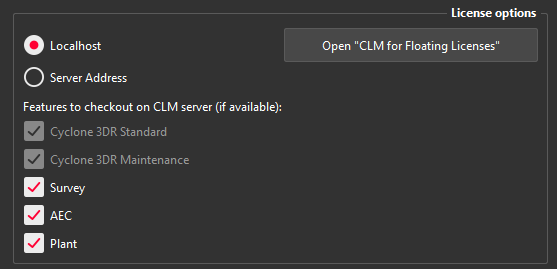
If you have entered the EID inside your local CLM, select Localhost. If the license is on a dedicated server, enter the server’s name in Server Address.
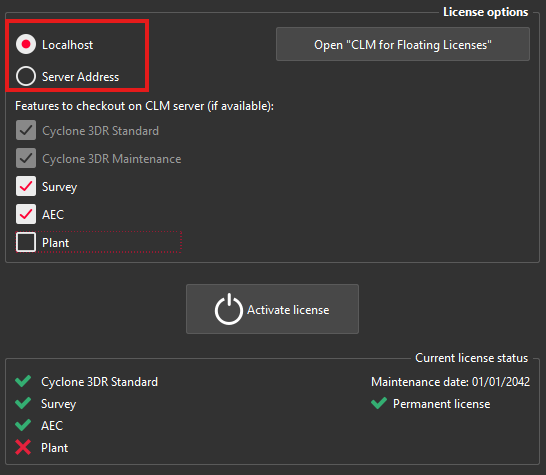
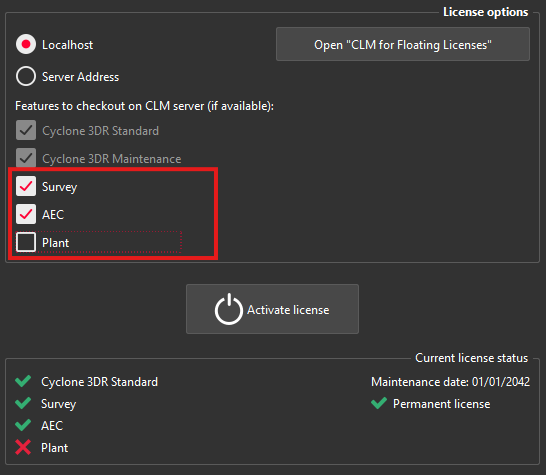
You can select the features you want to check out from CLM. The available options to checkout will correspond to the options you purchased which are contained in your EID.
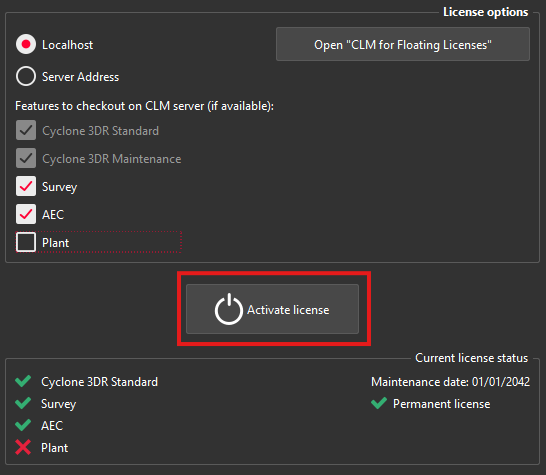
Once the options are selected, click on Activate license.
Installer customization
Command line parameters
Here are the list of officially supported command line parameters of Cyclone 3DR and Cyclone 3DR Viewer installer.
To use them:
Open a command prompt window.
Navigate to the local folder where there installer is located
Then enter the desired command.
You can combine several options together:
"D:\All Downloads\Cyclone_3DR_2026_0_2_49073.exe" /VERYSILENT /SUPPRESSMSGBOXES /LANG=en /DIR="D:\App"Options | Behavior |
|---|---|
/VERYSILENT /SUPPRESSMSGBOXES | Run the installer in silent mode. |
/LANG=language | Set the installer language. If a valid language is provided, the Select Language dialog will be suppressed.
BASH
|
/LOG=file_path | Create a log file of the installation process using the provided file path.
BASH
|
/DIR=file_path | Set the installation directory of the application.
BASH
|
/NoDeprecated | Prevent the deployment of any non-maintained third parties. This option limits the software's functionality. |


Offline deployment
To install Cyclone 3DR in specific environment with specific security policy, take a look on the “Offline Deployment” section in this page.