
Basic Tutorial | Remove or separate a part of the cloud
Open the file

Open the file CleanWithObject.3dr (download).
The file contains the point cloud of a tunnel. To make an inspection of the tunnel, we need to keep only the points from the vault. We can use three different tools to split a cloud into several parts and separate the vault from the rest of the points.
Clean and Separate
Select the point cloud Tunnel and go to Clean / Separate.
Draw a polygon
Orient the view (you may need the Alt key to slow down the rotation), draw a polygon around the points you want to select and press Enter to validate the selection. While drawing the polygon, you can cancel the last point clicked with the keys Del or Backspace on the keyboard.
The points in the selection are highlighted. Now you can rotate the view and move a ball in order to stretch the contour. When you move a point, it remains in the same plane. Drag and drop the contour or press Shift while moving the ball in order to create a selection box around the points. Click on the bin icon to delete the selected points. Repeat the action on all the other big areas and validate with OK.
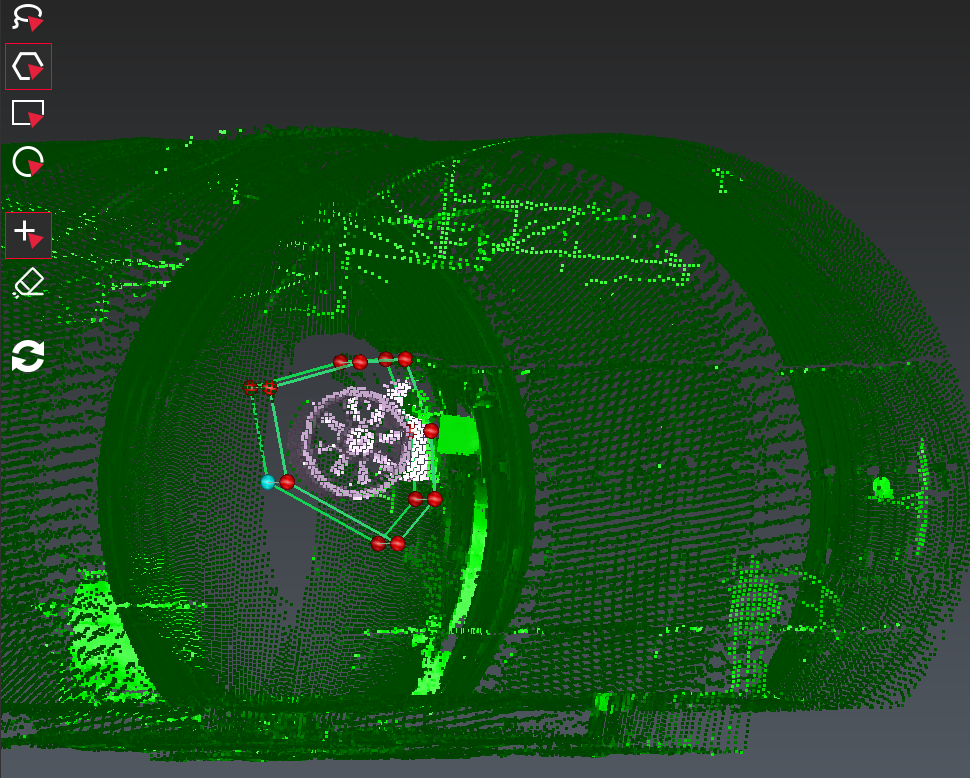
Remove a part of the cloud by drawing a polygon
Smart object segmentation
Before selecting the command, you can change the color of the point cloud, for example to red, to more easily distinguish the contour of the smart object segmentation.
Orient the view (you may need the Alt key to slow down the rotation).
Select the Smart Object Segmentation command and click in the middle of the vehicle. Zoom in and click on the exterior rear-view mirror(s) to extend the selection.
Follow the instructions on the information panel if you want to delete the previous selection or exclude points.
Press ENTER to confirm the temporary selection, move the camera to orient the scene if you need to further adjust the selection.
-20260223-092110.png?inst-v=e466437b-3d70-4f75-925d-490097fa0601)
Smart object segmentation
Press ENTER again to confirm the temporary selection, then press ENTER to convert it to a standard selection and return to the Clean and Separate command.
-20260223-094005.png?inst-v=e466437b-3d70-4f75-925d-490097fa0601)
With just a few clicks, you can easily and quickly select different areas using the intelligent object segmentation tool.
Use an object
Right click on the cloud “Copy Tunnel” and click Show only to begin the second part of the exercise. The file also contains a cylinder, which is the best cylinder extracted from the point cloud of the tunnel. Display it in the scene.
Select the cloud “Copy Tunnel” and the cylinder and go to Separate according Distance.
Set the Distance threshold to 0.2 m. Press Preview to preview the result. All the points located at a distance smaller than 0.2 meter from the cylinder are highlighted in a different color.
You can uncheck the option Points far from the object to directly delete the points farther than the given distance, or check both options to divide the cloud in two sub clouds.
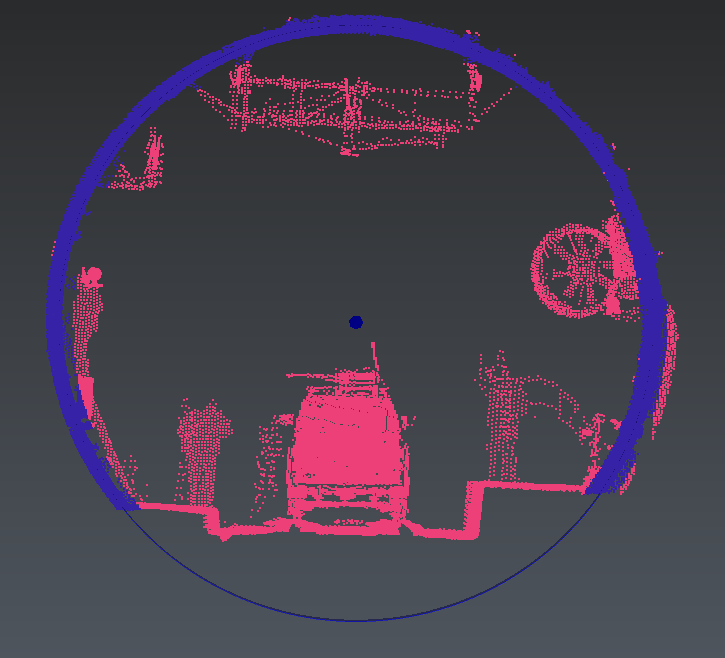
Separate a cloud with an object
Use colors
It is possible to split a point cloud by coloring it along a direction and then explode it depending on the colors. We are going to divide the tunnel into four independent parts.
First, we color the point cloud along the central axis of the cylinder used previously.
Display the polyline called “Central axis” in the scene.
Select the point cloud of the tunnel and go to Along Direction.
Choose the direction of a component
 , an arrow is displayed in the scene to represent the direction. Click on the central axis.
When you click on Preview, the point cloud is colored along this direction with a color gradient.
Click on Edit Color to modify the colors.
In the upper part of the dialog box, in Presets, choose the Regular Steps preset and set the Number of steps to 4 and Click OK.
Click OK to validate the color map.
Click OK again to validate the colored cloud.
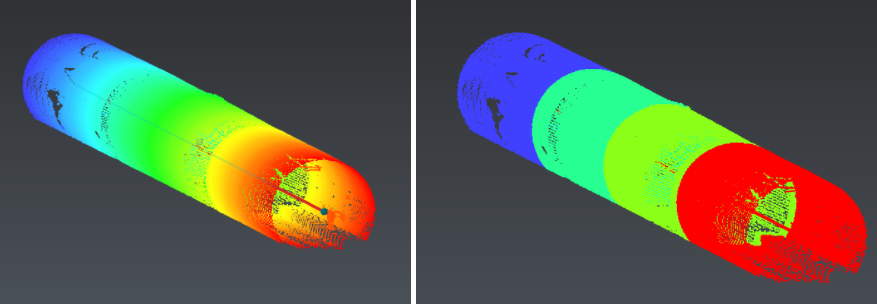
Color a point cloud along a direction
Now we can explode the point cloud according to the colors we have just set.
Select the point cloud and go to Separate by Attributes.
Select Inspection for the source and check Use gradient intervals. Click OK to validate.
The four sub clouds are added into the Measure Group and you can work on each one separately.