
Guided Workflow | Computing Volumes
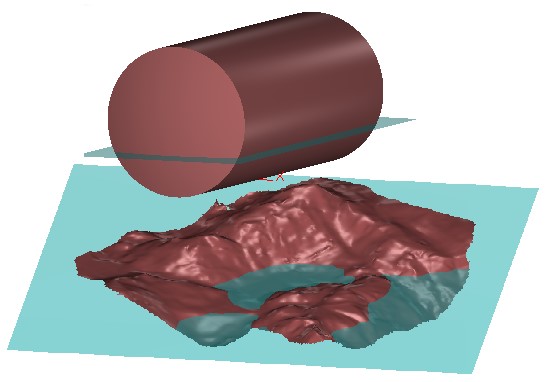

Exercise overview
In this exercise, we will see how to:
Compute the volume at a certain level of liquid
Evaluate the maximum level of a mountain lake
Calculate intersections between surfaces
Make a “constraint meshing”
The file used in this tutorial is MountainLake.3dr (download).
Calculating the volume of a lake
Open the file MountainLake.3dr.
Determining the maximum water height
The model represents a mountain landscape and the goal is to evaluate the maximum capacity of a mountain lake.
Select the object
Launch the command Volume From Elevation
Set the Direction: X = 0; Y = 0; Z = 1.
Adjust the water height to find the maximum water height. For this, you must zoom to verify that there is no junction here between the inside and the outside of the lake
You should find 2339.6 m
Press Preview then OK to validate the results
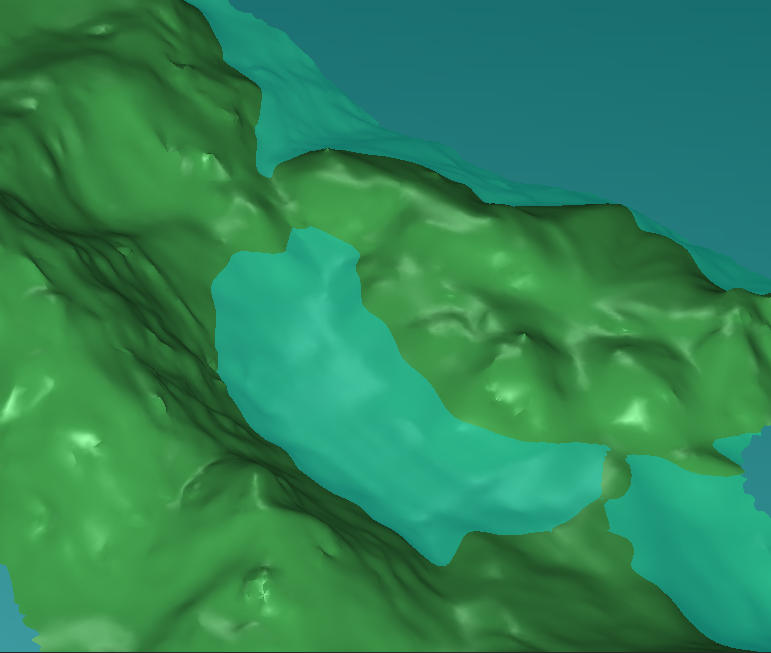
Figure 2: Adjusting the water level to find the maximum capacity of the mountain lake
The result of the volume calculation, here, is not meaningful because it represents the sum of the volumes inside AND outside the lake. Here we need only the volume inside.
Computing the contour of the lake
Select both the mountain surface and created plane
Launch the command Intersection
You should see that the intersection contours are calculated
Click OK, Exit to keep the result
Select the water level and hide it
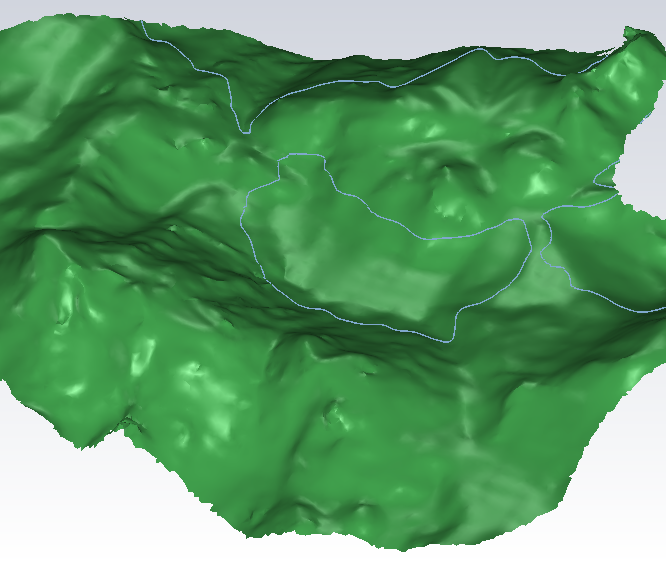
Figure 3: Using the command Intersection to get the contour of the lake
Separating the lake surface from the rest of the mountain
Select both the mountain surface and the contours
Launch the command Constraint Mesh
Check only Cut in parts
Click Preview to calculate the result, and then OK to validate
The mesh has been cut along the contours.
Calculating the volume of the lake
Click on the lake and right click to Show only this object
Launch the command Volume From Elevation
Adjust the water height to be at the maximum water height. You can click on the plus button at the beginning of list of distance, select option Nearest 3D Projection and select point on the top border of the lake.
Click OK
You should obtain a volume of 5.7 million of m3
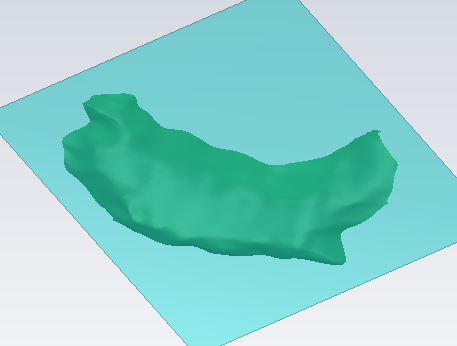
Figure 4: Computing the volume of the lake: 5.7 million of m3
Calculating the volume at several levels
It is also possible to compute a liquid volume all over the mesh according to regular levels. The resulting volumes can be displayed through Measure(s) and a customizable report or can be exported in CSV format.
Click on the lake and right click to Show only this object
Launch the command Volume From Elevation
Put the options as below:
Direction: X=0; Y=0; Z=1.
Choose Regular steps: 1m From 2310 m To 2339.6 m thanks to Custom mode.
Click OK
The intersection lines between each plane and the mesh can also be extracted via the command Intersection.